Offline mode
In basements, parking garages or sites without WiFi you can create inspections offline — provided you prepared the building for download beforehand.
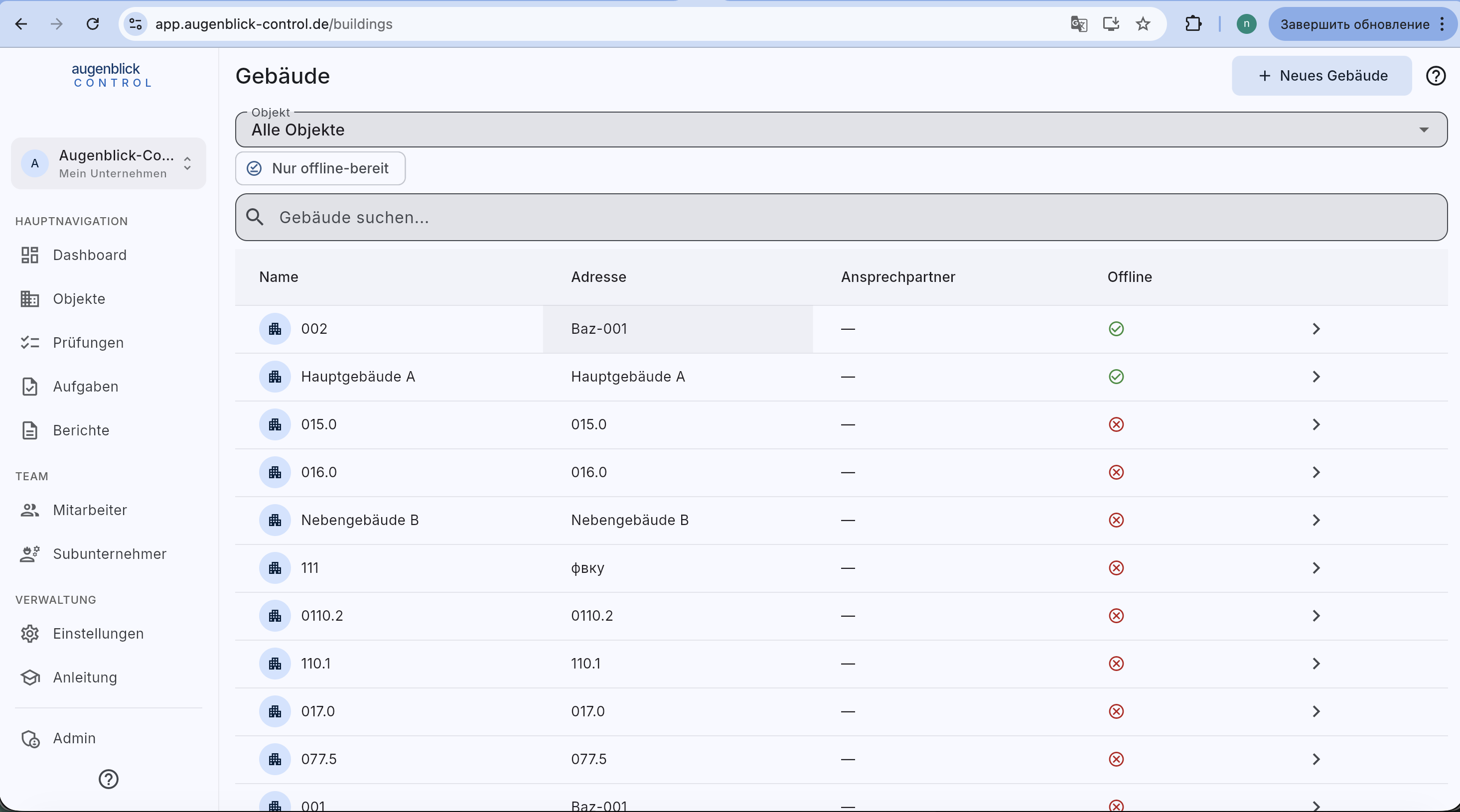
Prepare a building
Three ways:
- Dashboard card Offline-Modus → tap a building.
- In the buildings list switch to Nur offline-bereit filter and tap the desired building.
- Directly on the building detail via the cloud icon "Offline vorbereiten".
The app downloads in the background:
- Stammdaten of all elements.
- List of recent building inspections.
- Floor-plan image + marker positions.
Offline status in the building list:
- ✓ green — ready.
- ⏱ amber — download in progress.
- ✗ red — not prepared yet.
A full download saves all building elements you are allowed to access, including 15,000 elements. The normal list’s pages of 50 do not limit this download. Wait for the ready status before disconnecting.
What works offline
- Create inspections — fill the form, take photos, save signature.
- Browse elements — list, detail, Stammdaten.
- Floor-plan markers — display the plan and place new markers.
- Search — across already-cached elements.
Sync
As soon as a connection returns, the app automatically uploads all offline-created inspections. A status banner at the top shows progress. If the same element was inspected multiple times, only the newest is kept — a snackbar confirms: "Older attempt discarded".
On errors
If device or browser storage is full, the app explains the problem. Free up space, for example by removing unneeded files, then select Retry. Do not delete unsynced inspections. If memory is low, close other apps or browser tabs. A failed download does not mean that a new building is ready for offline use.
If a sync attempt fails (e.g. element was deleted in the meantime), the inspection appears under /inspections/failed-syncs with an explanation and options: Report or Discard.
Tip: Prepare buildings the day before — download time depends on element count (typically < 30 s for 100 elements over LTE).
What's next
Reports and returning to the building
Previously saved inspection reports require an internet connection. The history list may remain visible offline, but full reports and PDF generation are unavailable. New offline inspections, photos and signatures remain on the device until synchronization. Search within saved elements also matches UUID codes, starting at two characters.
After saving or closing an inspection, you return to its building. An element inspection opened from an ongoing BSB returns to that inspection walk.